Android permissions ride acceptor app
Android Permissions for Ride Acceptor Apps Explained
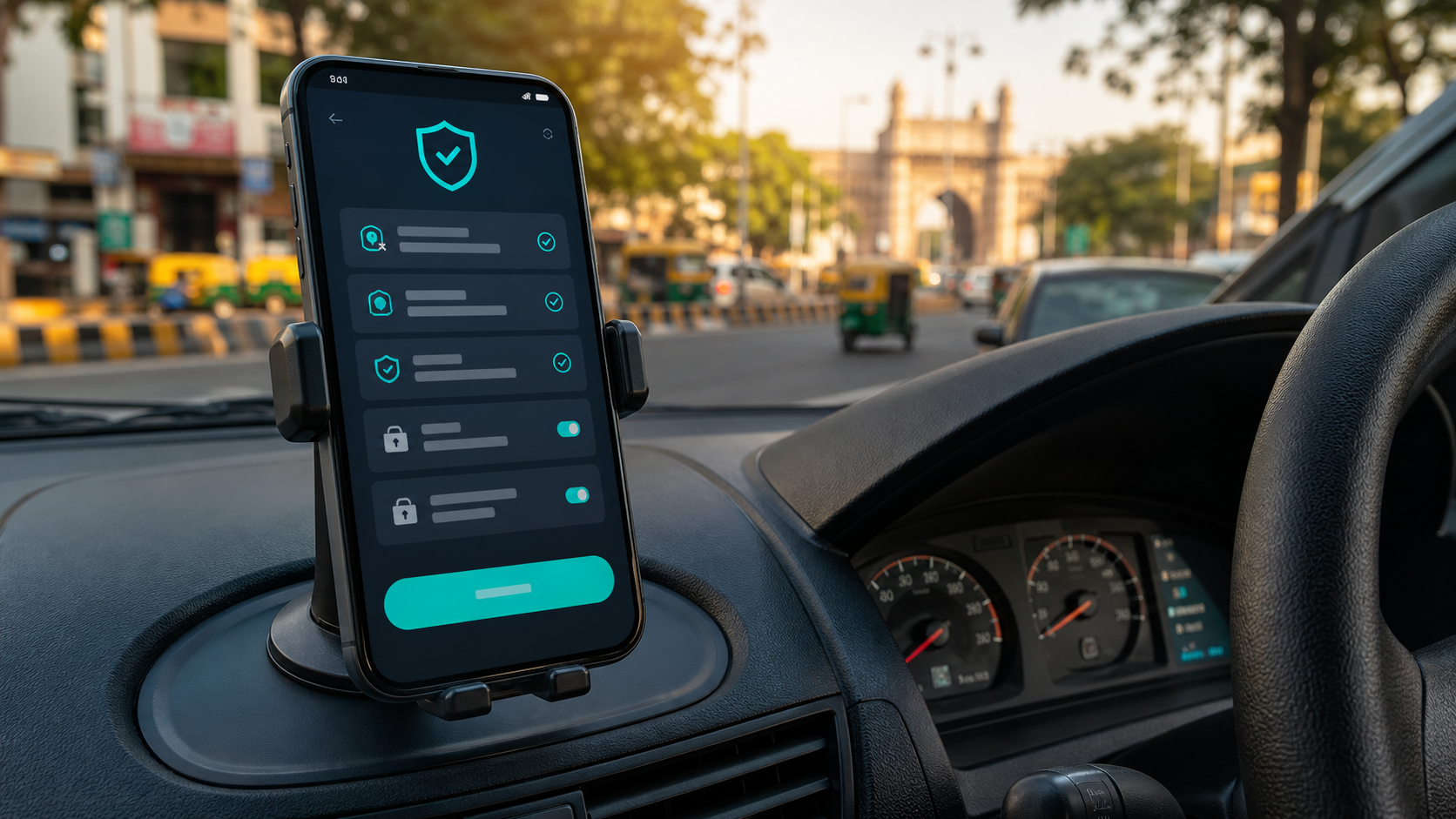
Accessibility, overlay, notifications, and battery settings are the main Android areas drivers should review before depending on any ride acceptor app.
Permissions can make or break a ride acceptor app. Many drivers install an APK, open it once, and then wonder why it stops working after a few minutes. The problem is usually not the dashboard. It is Android's permission and battery system. Rider Accept is designed to make those requirements visible so drivers can set up the phone with less confusion.
Accessibility permission
Accessibility is one of the most important permissions for a ride assistant. It allows the app to observe relevant screen events and support the workflow the driver has chosen. Android treats this permission seriously, so the user must enable it manually from settings. That is a good thing because drivers should always know which app has this level of access.
Before enabling Accessibility, check the app name, source, and purpose. Rider Accept uses a dedicated accessibility service for ride automation workflow. The permission should be enabled only if you trust the app and understand why it is needed.
Overlay permission
Overlay permission lets an app draw over other apps. In a driver workflow, this can be useful for quick controls, visible alerts, or service status. Some Android phones call it "Display over other apps" or "Appear on top." Without this permission, parts of a ride acceptor app may not be visible when another platform app is open.
Different phone brands place overlay settings in different menus. Xiaomi, Oppo, Vivo, Realme, Samsung, and OnePlus may all show slightly different labels. A good app should send the driver close to the right settings screen instead of leaving them to search manually.
Notification permission
On Android 13 and newer, apps need notification permission. For a foreground driver service, notifications are not just marketing messages. They can show whether monitoring is active and help Android understand that the app is doing ongoing work. If notification permission is blocked, the driver may not see important status changes.
Rider Accept keeps notification-related setup part of the permission flow because drivers should not discover the problem during a rush hour. It is better to fix notification access before starting the shift.
Battery optimization
Battery optimization is the silent issue. A phone may close background work to save power, especially when the battery is low or the screen has been off for some time. For drivers, this can mean alerts are missed even though the app looked fine earlier. Battery settings should be checked carefully.
Many drivers use battery saver mode during long shifts. That is understandable, but it can affect automation. The better approach is to keep the phone charged, allow the driver app to run, and avoid aggressive battery restrictions for work tools.
Why visible permission status matters
Drivers do not have time to debug Android settings every day. The app should make setup obvious. Rider Accept brings permission checks into the dashboard so the user can see what is ready and what needs attention. This is also better for trust. The driver is not asked to blindly enable settings; the app explains the workflow through the interface.
Safe setup habit
After installing Rider Accept, open the app, check each permission, select the platforms you use, set your fare range, and then start the service. If you update Android or change phones, repeat the permission check. A few minutes of setup can prevent hours of missed alerts later.
Permissions are not exciting, but they are the foundation. When Accessibility, overlay, notifications, and battery settings are configured correctly, a ride acceptor app becomes far more reliable for daily work.
When permissions stop working
If the service suddenly feels inactive, do not uninstall immediately. First check whether battery saver is on. Then check whether Accessibility is still enabled, whether overlay permission is still allowed, and whether notifications are blocked. Some phones silently restrict apps after a system update or when storage is low. Restarting the phone after permission changes can also help the operating system settle into the new setup.
This kind of troubleshooting is normal for Android work tools. Rider Accept keeps the important permission areas easy to find so the driver can fix the issue quickly and return to work.
Privacy and control should stay visible
Drivers should never feel forced to enable permissions without understanding them. A professional app must explain why each setting is needed and let the user stay in control. If a permission is disabled, the app should show that status clearly rather than pretending everything is ready. This builds trust and prevents confusion during real work.
Rider Accept's permission approach is practical: show the requirement, give the setup action, and let the driver decide. That is better than hiding permissions behind vague technical language.
A good permission screen also reduces support problems. When the driver can see exactly which setting is missing, they do not need to guess whether the app, phone, or platform is causing the issue. Clear status saves time for both the user and the app owner.
Quick FAQ
Does every Android phone show the same permission screens? No. Samsung, Xiaomi, Vivo, Oppo, Realme, and OnePlus can place settings in different menus. The permission names are similar, but the path may change.
Should I check permissions after updates? Yes. Android updates, security apps, and battery modes can reset or restrict background behavior. A quick check before work is a useful habit.
What should I check first if alerts stop? Start with battery saver, notification access, and Accessibility status before changing your fare filters.