Auto ride booking app for drivers
Auto Ride Booking App for Drivers: What to Check Before You Start
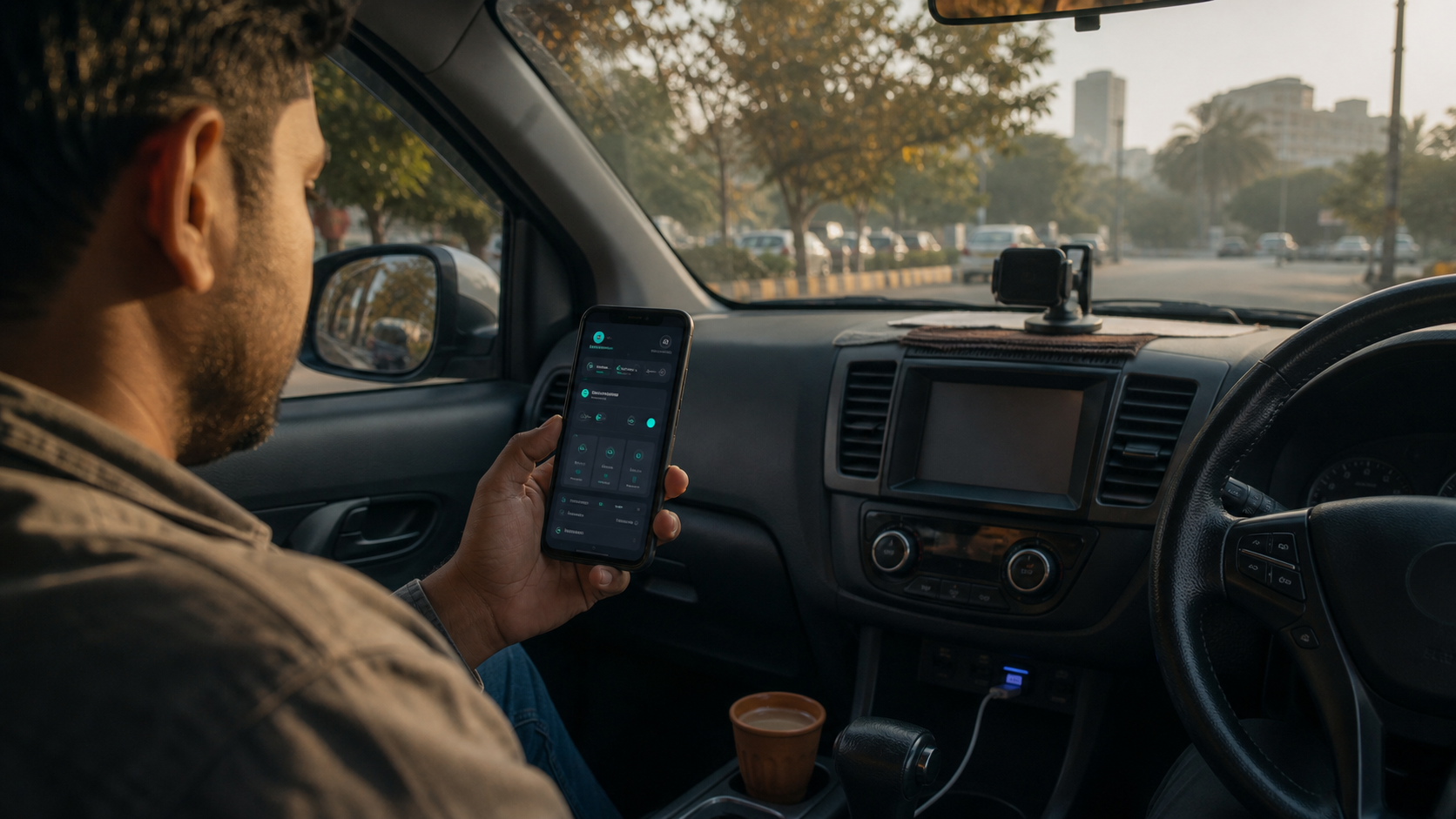
Before starting an auto ride booking app, check supported platforms, permissions, fare filters, notification access, battery settings, internet stability, and ride history.
An auto ride booking app for drivers should be judged by one simple question: does it make the working day easier? A shiny interface is not enough. Drivers need stable monitoring, clear permissions, useful filters, and a way to review what happened. Before you depend on any booking assistant, it is worth checking a few practical points.
1. Check supported platforms first
Many drivers use more than one platform. A cab driver may keep Ola and Uber open. A bike taxi partner may use Rapido during peak hours. Delivery partners may switch between Swiggy, Zomato, Blinkit, Zepto, and other apps depending on the zone. The auto ride booking app should clearly show which platforms are supported and which ones are active.
Rider Accept includes a supported-apps screen so the driver can see the platform list instead of guessing. This matters because a good workflow starts with clarity. If a platform is not selected or not installed, the driver should know before the busy hour begins.
2. Review permission status
Android permissions are the backbone of any ride assistant. Accessibility helps the app observe relevant on-screen information. Overlay permission can support visible alerts or controls. Notification permission matters on Android 13 and newer. Battery settings can affect whether the service keeps running in the background.
Drivers should not treat permissions as a one-time formality. Phone updates, battery saver modes, and manufacturer security apps can change behavior. Rider Accept keeps permission actions visible so the driver can fix the setup without searching through long settings menus.
3. Set a realistic fare filter
A minimum fare that is too high may reduce useful work. A minimum fare that is too low may create too many weak orders. The right setting depends on city, fuel cost, traffic, waiting time, and platform demand. Start with a realistic range, work for a day, then adjust based on history.
This is where the app becomes more than a button. It becomes a decision tool. The driver can see which rides were accepted or skipped and slowly tune the workflow. Good drivers already think this way; Rider Accept simply gives them a cleaner control panel.
4. Use history as feedback
Many drivers remember only the best and worst orders of the day. History gives a more balanced picture. If too many low-value orders appear, the fare filter may need adjustment. If alerts are missed during certain hours, permissions or battery settings may need review. If one platform is performing better, the driver can focus there for a while.
Rider Accept's history screen is useful because it turns the day into visible data. You do not need complex analytics to improve. Even simple records like platform, fare, status, and time can help a driver work smarter.
5. Keep the phone work-ready
Automation cannot help if the phone is overheating, out of battery, muted, or overloaded with background apps. Use a charger, keep the screen readable, avoid unnecessary apps during work, and check that the internet connection is stable. These habits sound basic, but they make a big difference during peak hours.
A reliable auto ride booking app for drivers should support these habits, not replace them. Rider Accept gives the dashboard; the driver still brings local knowledge and discipline.
Common mistakes to avoid
Do not enable every platform at once just because the app supports it. Start with the platforms you actually use in your city. Do not set the fare filter so high that normal work disappears. Do not ignore battery settings after an Android update. And do not judge the app from one short session. Use it through a normal working day, then review the history screen to understand whether the setup matches your route.
Drivers who treat setup as a routine usually get more stable results. The app should become part of the shift checklist, just like fuel, phone charge, internet pack, and vehicle documents.
What makes the interface professional?
A professional driver app should not look like a random settings screen. It should show status, action, and feedback in a clear order. The driver should know whether monitoring is on, which apps are selected, whether permissions are ready, and what fare range is active. Rider Accept's dashboard is built around this structure because drivers often check the phone quickly between trips.
Good interface design also helps reduce mistakes. Large buttons, readable contrast, and short labels are not decoration. They are practical choices for people who work outdoors, in bright light, in parked vehicles, and across long shifts.
Final checklist
Before starting the service, check supported apps, grant permissions, set fare filters, confirm notification access, and look at history after the shift. If all five are part of your routine, the app will feel more predictable. That is the real value of Rider Accept: a cleaner, faster, more organized driver workflow.
For best results, keep the checklist visible in your mind for the first few days. After that, the process becomes natural: open the dashboard, confirm status, start the service, work the shift, and review history. This simple habit is what turns a booking tool into a daily driver system.
Quick FAQ
Should I use every supported platform? No. Use the platforms that actually perform in your city and vehicle category. Too many active apps can create noise.
How often should I change filters? Review them after a normal workday or weekly. Changing filters after every single bad order usually creates inconsistent results.